改善Kaizen · Continuous Improvement

The read-later app and RSS reader for Bibliophiles

Save articles and RSS feeds as clean Markdown, from the app or your browser, mark the passages that matter, and let Claude or ChatGPT search everything you have read while you work on the hard problem in front of you.

Desktop read-later app for macOS, Windows and LinuxEncrypted library on your computerBuilt-in MCP server for Claude and ChatGPT
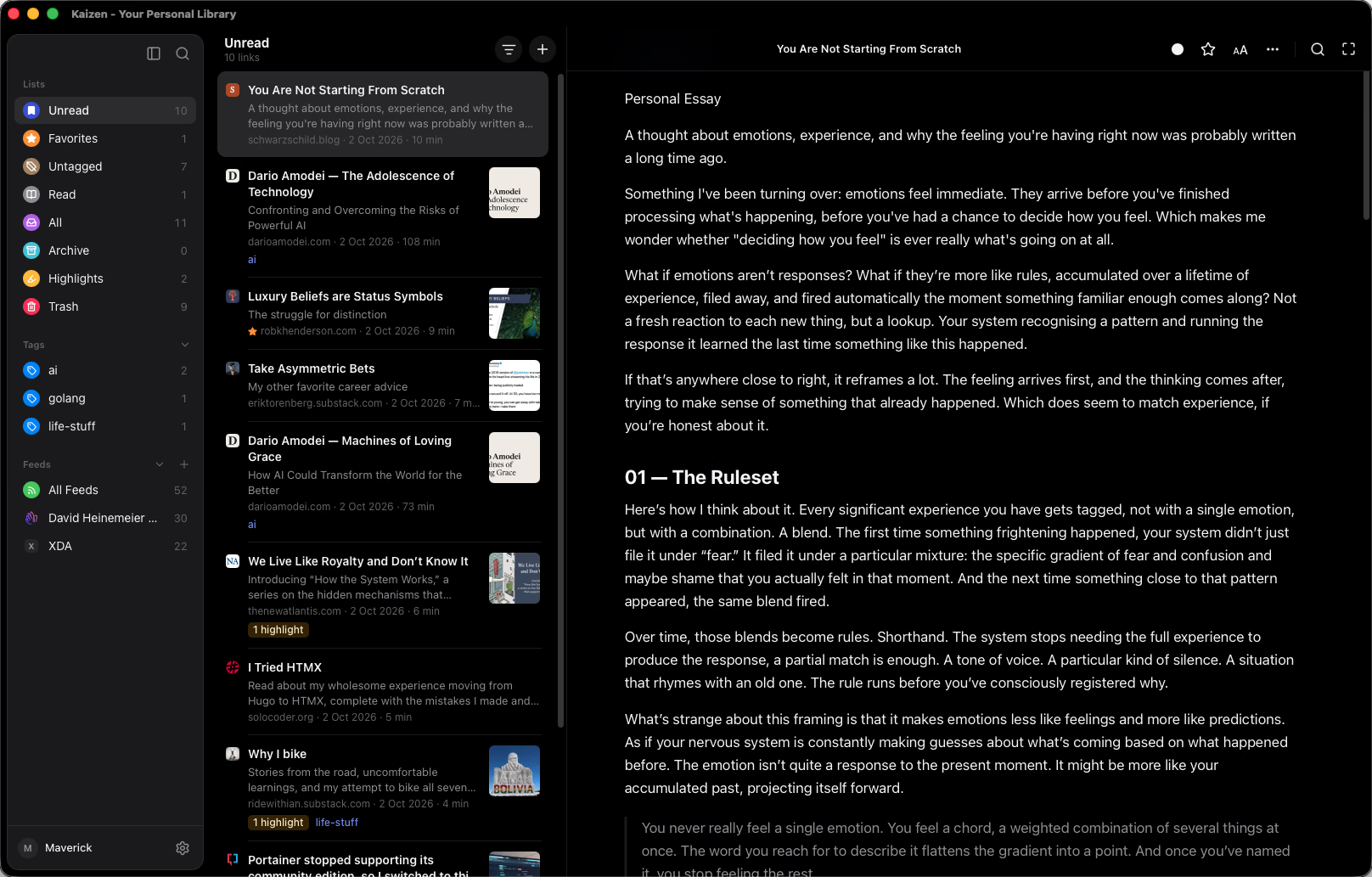
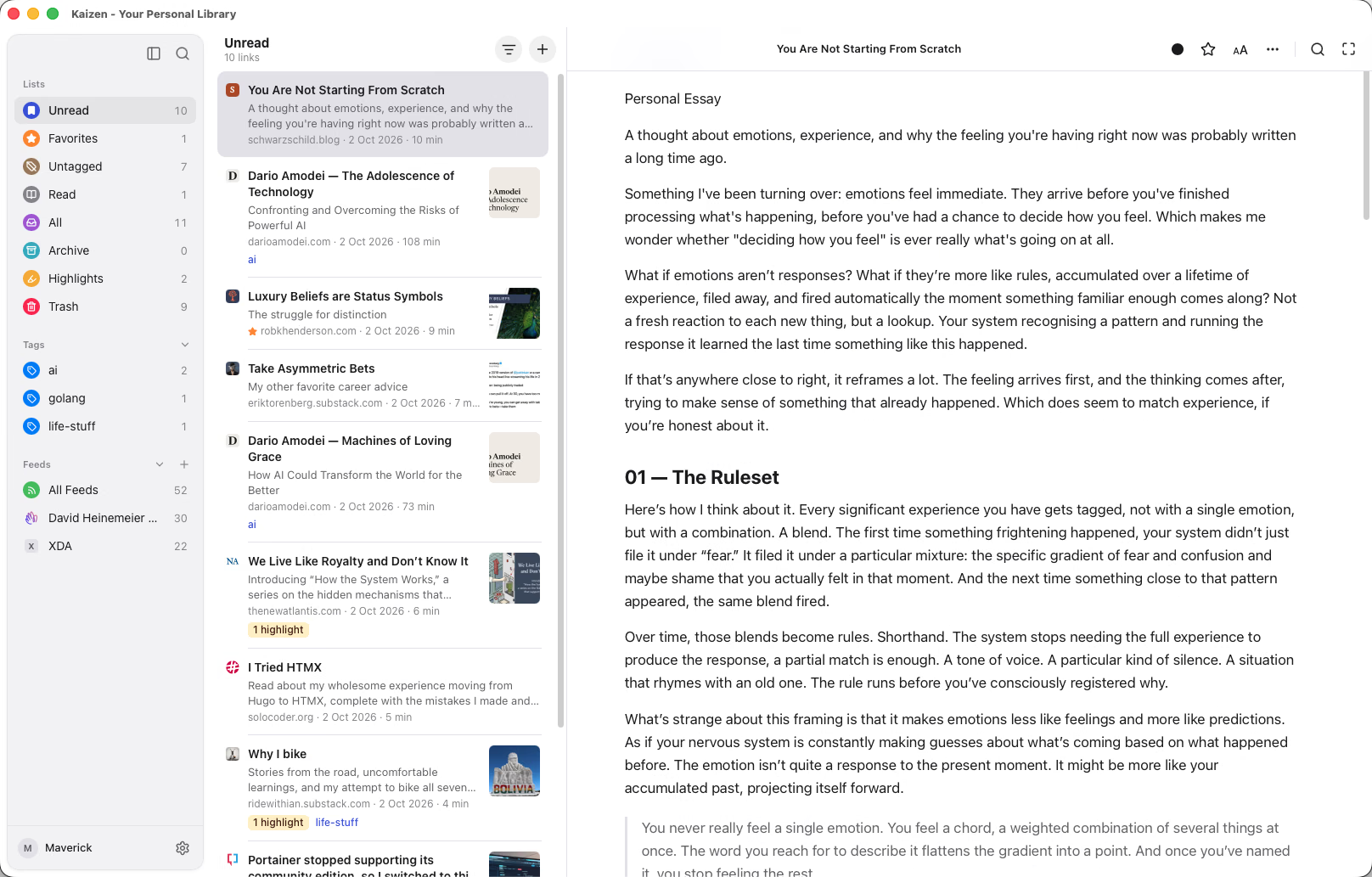
Kaizen on macOS in its light theme: lists and tags in the sidebar, ten unread links with thumbnails in the middle, and the essay “You Are Not Starting From Scratch” open in the reader.

Your library lives on your computer, and nowhere else.

What you read says a lot about you. Kaizen keeps it where it belongs: on your machine, locked with a key only your machine holds.

When you connect an agent, it reads your library through a server that runs on your computer, and only what its Kaizen tools return reaches the agent you chose.

Local first

Your articles, highlights, notes and feeds live in a database on your computer. Saving and reading work without an account.

Encrypted

The library is encrypted with SQLCipher under a random key kept in your system keychain. Copied off the disk, the file is unreadable.

Private

No Kaizen account, no cloud copy, no analytics. Kaizen goes online only to fetch the pages you save, their images and the feeds you follow.

How it works

From a link to an answer in three moves

Problem solvers read to understand, then reach back for what they read. Kaizen is shaped around that loop.

01 · SAVE

Keep the page, lose the clutter

Paste a link, or click the Kaizen button in your browser, and the app extracts the article itself. No extraction server, no account to set up.

  • Headings, lists, tables, highlighted code and KaTeX math kept intact
  • A browser extension for Chrome, Brave, Edge, Arc and more
  • Follow RSS, Atom and JSON feeds, refreshed every 30 minutes
02 · MARK

Highlight what you’ll need later

Select a passage to highlight it, add a note in your own words, and tag the article so it lands with related work. Kaizen remembers where you stopped.

  • Colored highlights with notes
  • A Highlights view across the whole library
  • Export any article as Markdown or PDF
03 · ASK

Let your agent read it with you

Connect Claude or ChatGPT and it can search your library, open an article with your highlights and notes, and cite where each idea came from. It can file things for you too.

  • Claude Desktop, Claude Code, ChatGPT desktop and Codex
  • Answers point to the article’s title and URL
  • Saves links, tags and archives, flagging each change

Features

The details that make a library worth keeping

Every plan includes everything here.

Save from your browser

A toolbar button for Chrome, Brave, Edge, Chromium, Vivaldi and Arc, or Alt+Shift+S. The browser hands over the page as you see it, so pages you’re signed in to and pages built with JavaScript save too.

Get it on the Chrome Web Store

Feeds that stay out of the way

Follow RSS, Atom and JSON feeds, refreshed every 30 minutes. Items stay apart from your library until you save one, and read items clear out after 60 days.

Export Markdown and PDF

Take any article out of Kaizen as a Markdown file or a PDF, lead image included, saved wherever you choose.

Pick up where you left off

Kaizen remembers your reading position in every article, and switching between long pieces stays quick.

A reader you can tune

Serif, Sans or Mono type, three column widths, adjustable text size, and Light, Sepia, Dark and Amoled themes. Find any word in the article you’re reading.

Share, refresh, recover

Share a passage through the system share sheet, download an article again when its page changes, and restore anything from the Trash for 30 days.

Kaizen for Claude and ChatGPT

Everything you’ve read, in your agent’s context

Kaizen ships with a Model Context Protocol server inside the app. Your agent asks for what it needs, and Kaizen answers from your library on your machine. Ask, and it can save and file articles for you too.

Example conversation

I’m giving a short talk on building better habits next week. What have I saved about it?

Searched your library for habits · 3 articlessearch_articles
Pulled the passages you marked · 7 highlightslist_highlights
Opened Small Steps, Kept Daily · with your noteget_article

You’ve saved three pieces on it. The idea you highlighted most is to make the first step so small it feels silly to skip.

Your note on Small Steps, Kept Daily says you tried that with ten minutes of reading before bed and kept it up for a month. That story could open the talk.

From Small Steps, Kept Daily and The Myth of Motivation, in your library

Perfect. Tag all three “talk prep”, and archive the one on motivation. I won’t need it.

Tagged 3 articles “talk prep” · Doneupdate_article
Archived The Myth of Motivation · Doneupdate_article

All set. The other two are waiting under talk prep whenever you sit down to write.
ToolWhat your agent can do
Read
search_articlesSearch titles, authors, descriptions, URLs and full text, filtered by list or tag.
get_articleRead an article’s Markdown, in pages for long pieces, with its highlights and notes.
list_highlightsReview highlights across the library, by text, tag, color, note or date.
list_tagsSee how the library is organized and how many articles carry each tag.
Change
save_articleDownload a link and save its article, with tags if you like.
update_articleMark an article read, starred or archived, and add or remove tags.
trash_articleMove an article to the Trash, where you can restore it.

The change tools are marked as such, so an agent that asks before changing things asks before these. The example conversation is an illustration of how a session reads.

Claude Desktop and Claude Code

  1. In Kaizen, open Settings and find AI assistant.

  2. On the Claude tab, choose Add to Claude
    Kaizen builds a Claude Desktop extension for your installation and Claude asks you to confirm. It keeps working when Kaizen updates.

  3. For Claude Code, copy the command Settings shows, with the path to your installation filled in:

    claude mcp add kaizen -- /path/to/Kaizen mcp

ChatGPT and Codex

  1. In Kaizen, open Settings and find AI assistant.

  2. On the ChatGPT tab, choose Add to ChatGPT
    Kaizen adds itself to Codex’s config, which the ChatGPT desktop app, Codex CLI and Codex IDE extension all read.

  3. Restart ChatGPT or Codex to load Kaizen.

  4. Or copy the Codex CLI command Settings shows, with the path to your installation filled in:

    codex mcp add kaizen -- /path/to/Kaizen mcp

Pricing

Try all of Kaizen for 14 days.

The trial includes everything: the reader, feeds, highlights, browser extension and agent tools. It starts when you first open Kaizen, with no card or account, and nothing is charged when it ends.

Trial

Try every feature before you pay.

$0for 14 days

No card, no account, nothing to cancel

  • Everything in Yearly, for 14 days
  • Starts the first time you open Kaizen
  • Afterwards your library stays readable, searchable and exportable until you buy
Start free trial

Yearly

Every feature, renewed yearly.

$49/ year

About $4 a month, one computer, cancel anytime

  • Unlimited saved articles
  • RSS, Atom and JSON feeds
  • Browser extension for Chromium browsers
  • Highlights, notes and tags
  • Markdown and PDF export
  • MCP server for Claude Desktop, Claude Code, ChatGPT and Codex
  • Library and feed tools, from search_articles to subscribe_feed
Get Yearly
Founder price

Lifetime

For readers who would rather pay once.

$129$99once

For the first 500 buyers, then $129

  • Everything in Yearly, for good
  • All desktop updates
  • New MCP tools as they ship
  • One person, up to 5 computers
Buy Lifetime

Download

Start your 14-day trial.

Download Kaizen and open it: the trial starts then, with no card or account. When you buy a license, enter its key in Settings under License.

macOS

Macs with Apple silicon (M1 or later). Intel Macs aren’t supported.

Open the disk image and drag Kaizen to Applications.

Download for Mac

Windows

Windows 10 or 11, 64-bit

Windows may warn that it doesn’t recognise the app. Choose More info, then Run anyway.

Download for Windows

Also as .msi

Release notes and all files on GitHub. Kaizen updates itself when a new version is out.

To save pages from your browser, add the Kaizen extension from the Chrome Web Store, then choose Connect in Kaizen’s Settings under Browser extension.

Questions

Before you connect an agent

Can an agent change or delete my articles?

It can save links, mark articles read, starred or archived, change their tags, move them to the Trash and edit highlights. Each of these is flagged as a change, so an agent that asks first will ask. Nothing it does deletes an article for good, though deleting a highlight can’t be undone.

What does my agent actually see?

Only what a tool call returns: search results, an article’s text, highlights and notes, or your tags. Articles in the Trash are left out.

Should I keep confirmations on?

Yes, unless you trust everything in your library. Your agent reads the text of saved pages, and a page can be written to mislead it into changing your library or sending what it read elsewhere.

Does it work with ChatGPT on the web?

No. Kaizen’s server runs on your computer, and ChatGPT on the web connects only to servers on the internet. Use the ChatGPT desktop app or Codex instead.

Does my library live in the cloud?

No. Kaizen keeps your library in an encrypted database on your computer, with its key in your system keychain. Saving and reading work without any Kaizen account.

Which pages can Kaizen save?

Most articles and blogs. When you paste a link, Kaizen doesn’t run the page’s JavaScript, so a page that loads its text through scripts may not save. Save it from the browser extension instead: the browser sends the page as it rendered it, including pages you’re signed in to.